Suppliers
- Available on
- Trial
- Pro
- Enterprise
- Who can do this
- Open this screenRoles: Administrator, Employee
Permission: purchasing:read - Add, change, archive, restore, delete or import suppliersRoles: Administrator
Permission: purchasing:write - Add a supplier to a material, or change its terms thereRoles: Administrator
Permission: product:write
- Open this screenRoles: Administrator, Employee
The Suppliers screen lists the companies you buy from, with how to reach them. A purchase order goes to one of them, and Send by email on its page sends it to the supplier’s contact email, on the Pro and Enterprise tiers. What a supplier charges for a material, how long it takes to deliver and its minimum order are kept on the material’s page.
Suppliers don’t count toward any cap of your subscription tier.
The list
Section titled “The list”The list has two tabs: Active, which opens first, and Archived, the inactive suppliers. It shows each supplier’s Name, Supplier #, Status, Email, Phone and when it was Created, by name. Show it as Cards or as a Table, search it by name, supplier number or contact email, and filter it by Name, Supplier # and Created.
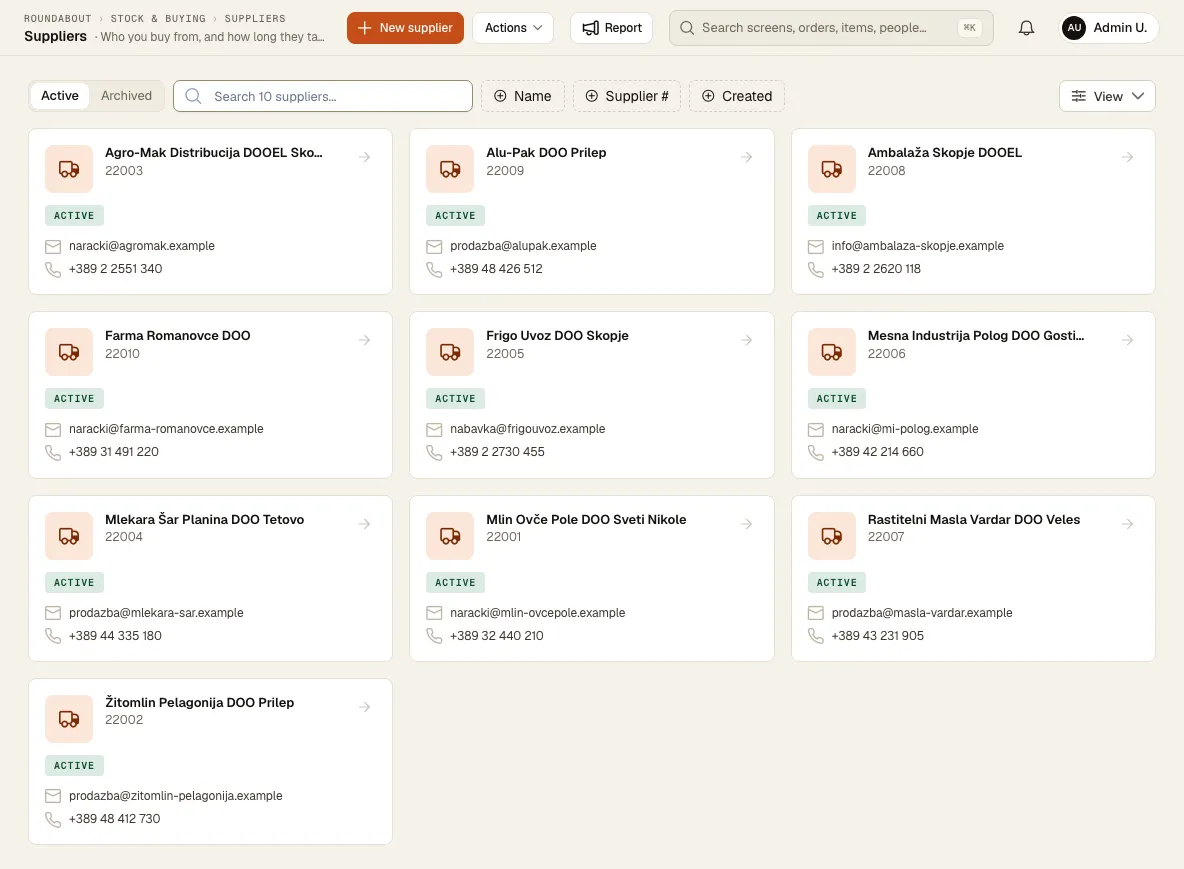
A supplier’s row or card offers Archive on the Active tab and Restore on the Archived one. Click a supplier to open its page: see Supplier.
Add a supplier
Section titled “Add a supplier”- Click New supplier.
- Enter a Name. It prints on purchase orders.
- If you like, enter a Supplier number, such as their account code with you. No two suppliers can have the same one, and imports find a supplier by it.
- Leave Status at Active.
- Enter a Contact email. Send by email on a purchase order sends it here, and to no other address.
- If you like, enter a Contact phone, an Address, which prints on the purchase orders you send them, and Notes for your team, which aren’t printed.
- Click Create supplier.
You can also add a supplier on the spot from a supplier picker, such as the one in New purchase order, with the + beside it.
Import suppliers
Section titled “Import suppliers”To bring in many suppliers at once, open Actions and click Import suppliers…: see Import suppliers.
Give a material its suppliers
Section titled “Give a material its suppliers”A supplier supplies nothing until a material names it. On the material’s page, Suppliers holds each supplier you buy it from, with their code for it, the price, the purchase unit, the lead time in days and the minimum order. The first one you add is the default.
- A purchase order line to a supplier starts with their unit, price and code.
- Planning reads the default supplier’s lead time for material that is neither in stock nor on order.
- What runs out next counts back the default supplier’s lead time to the day you must order, and Replenishment orders from the default supplier.
A supplier’s page lists the materials it supplies under Items.
Delete a supplier
Section titled “Delete a supplier”On the supplier’s page, open Actions and click Delete, then confirm. werkplan doesn’t delete a supplier that:
- has any purchase order, a draft or a cancelled one included: the orders are the record of what you bought;
- a material names as one of its suppliers;
- has a location for its premises, which outsourced work to it adds.
werkplan says which, and for an active supplier offers to archive it instead. To stop buying from a supplier, archive it: see Supplier.
Still stuck? Write to support@example.com.