Transfer
- Available on
- Trial
- Pro
- Enterprise
- Who can do this
- Open a transfer's page, and print its transfer noteRoles: Administrator, Employee
Permission: inventory:read - Raise a transfer, change it and its lines, ship it, receive it or cancel itRoles: Administrator
Permission: inventory:write
- Open a transfer's page, and print its transfer noteRoles: Administrator, Employee
A transfer moves stock between two of your own locations as one numbered document, such as TO-0000002, with a line for each item. Use it for stock that leaves one site and arrives at another later: between the two, the goods are on the road, yours but usable nowhere. To move stock within a site at once, use Transfer stock on the Stock screen instead.
You open a transfer from the Transfers screen.
What its page shows
Section titled “What its page shows”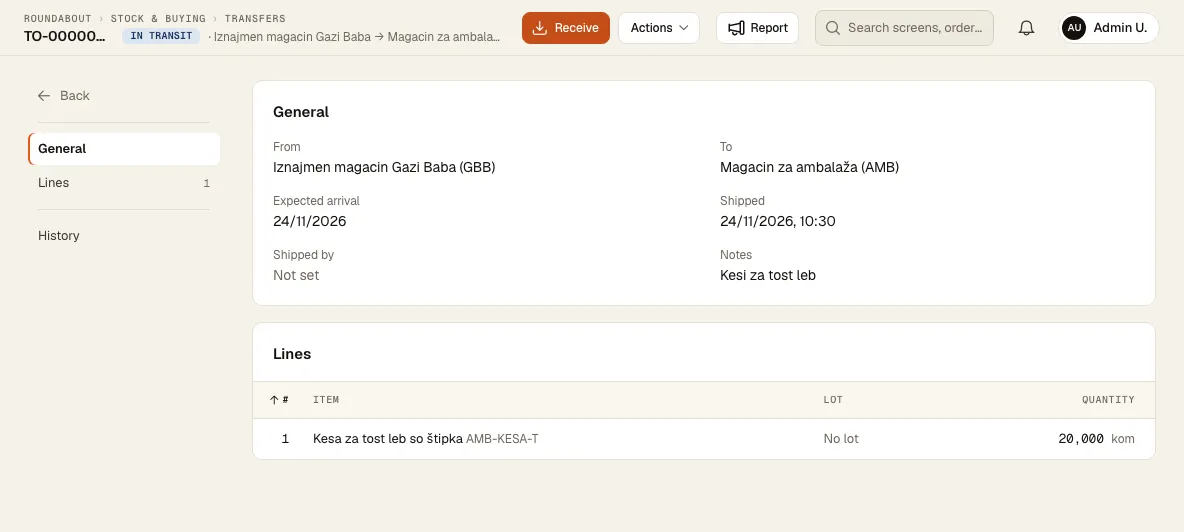
- The top bar: its number, its route, its status, and its next step: Ship on a draft with lines, Receive while it is on the road.
- General: From and To, the Expected arrival, once it has shipped Shipped and Shipped by, once received Received and Received by, once cancelled Cancelled and the Reason, and its Notes.
- Lines: each line’s number, Item, Lot and Quantity, and once something numbered by serial number has shipped, the Units that left.
- History: who created it and who changed it last, and when.
Actions holds Edit, Print once it has shipped, and Cancel transfer until it is received or cancelled.
Raise a transfer
Section titled “Raise a transfer”- On the Transfers screen, click New transfer.
- Pick where it leaves under From and where it arrives under To: two different active locations of your own. Your default location starts in From.
- If you like, enter the Expected arrival and Notes. Both print on the transfer note.
- Click Create draft. The transfer opens, a Draft with no lines.
- On Lines, click Add line, pick the Item, and for an item tracked by lot the lot at the source, then enter the Quantity. Each item and lot can be on a transfer once.
werkplan refuses a contractor’s premises at either end: you send components to a contractor on their purchase order. It checks the stock at the source only when you ship. See Move stock to another site.
Change it
Section titled “Change it”On a draft, Edit changes the route, the expected arrival and the notes, and each line’s Edit line and Remove line change or take off a line. Once the transfer has shipped, Edit changes only the Expected arrival: what left is fixed. A received or cancelled transfer can’t be changed. A transfer is never deleted.
Statuses
Section titled “Statuses”You ship, receive and cancel a transfer; nothing changes its status by itself.
stateDiagram-v2
  accTitle: Transfer statuses
  accDescr: A transfer starts as a Draft. Ship puts its goods on the road, In transit, and Receive brings them into the destination, Received. Cancel transfer cancels a draft, or brings the goods of one on the road back to where they left from.
  state "In transit" as Road
  [*] --> Draft: Raised
  Draft --> Road: Ship
  Road --> Received: Receive
  Draft --> Cancelled: Cancel transfer
  Road --> Cancelled: Cancel transfer, goods go back
| Status | How a transfer gets it | How it leaves it | What it does to stock |
|---|---|---|---|
| Draft | New transfer | Ship, or Cancel transfer | Nothing |
| In transit | Ship | Receive, or Cancel transfer with a reason | Its goods have left the source and are on the road: counted as expected, not on hand anywhere |
| Received | Receive | It stays received | Its goods are on hand at the destination, not in a bin |
| Cancelled | Cancel transfer | It stays cancelled | Nothing for a draft; goods on the road go back to the source, not in a bin |
Every status change needs the permission inventory:write.
The transfer is only written down. It moves nothing and holds nothing back: the stock at the source stays free for any other use, and werkplan checks it only when you ship. You change the route, the lines, the expected arrival and the notes freely.
Ship, offered once the transfer has a line, puts it In transit. Cancel transfer drops it, with a reason if you like.
In transit
Section titled “In transit”The goods have left the source and are on the road. Ship took everything on the lines off the source at once, as one transfer movement on the Transactions screen: from its stock not in a bin first, then bin by bin, each lot as named, and the oldest units of an item numbered by serial number. werkplan refuses the whole shipment, and moves nothing, when the source doesn’t hold enough of a line in stock that can be used, or when any of a line’s stock at the source, in its lot, is reserved for a production order: release the reservation first.
While the goods are on the road:
- they are on hand nowhere, so nothing can issue, reserve, deliver or count them;
- the Stock screen counts them in Expected, and an item’s page says how much of that is in transit;
- What runs out next counts them as arriving on the expected arrival, or today when it has none;
- they are left out of the stock’s value until they arrive.
A lot on the road that is quarantined or past its expiration date is counted in neither Expected nor What runs out next.
Planning counts only the free stock in your own active locations, so a production order that needs goods on the road can wait for material until they are received.
Only the Expected arrival can change. Print gives the transfer note for the driver: the route, when it shipped and who shipped it, the expected arrival, and each item with its lot and quantity, but no prices. Receive brings everything into the destination: it is Received. Cancel transfer, with a reason, brings the goods back to the source.
A location can’t be made inactive while a transfer on the road is headed to it or would come back to it.
Received
Section titled “Received”Everything that shipped is on hand at the destination, in the same lots, not in a bin: put it away onto a shelf with Bin transfer on the item’s page. Receive is always in full. When less arrived than shipped, receive it and correct the destination’s stock with an adjustment: see Correct stock on hand.
The transfer is closed: it can’t be changed or cancelled. Its movements can’t be voided on the Transactions screen.
Cancelled
Section titled “Cancelled”The transfer is abandoned. A draft moved nothing. A transfer cancelled on the road brought its goods back to the source, not in a bin, as a transfer movement of its own, and records the Reason. A cancelled transfer can’t be changed, shipped or printed.
Still stuck? Write to support@example.com.